
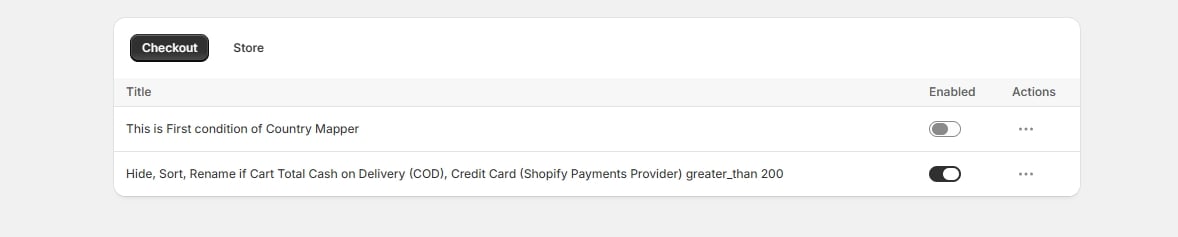
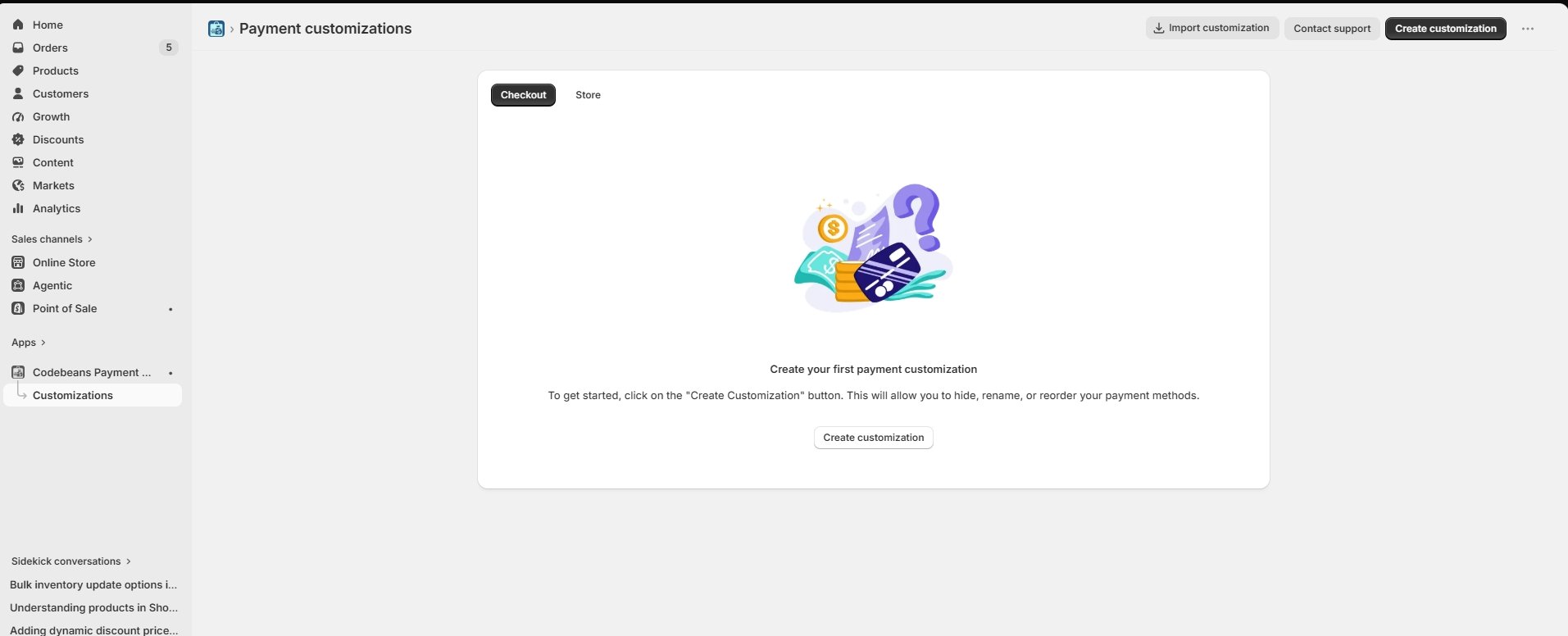
The two tabs
Checkout — all your payment rules. This is the tab you want. Store — reserved for store-level rules (hiding accelerated checkout buttons from product and cart pages). Currently shows a Coming soon notice.The table
The … menu
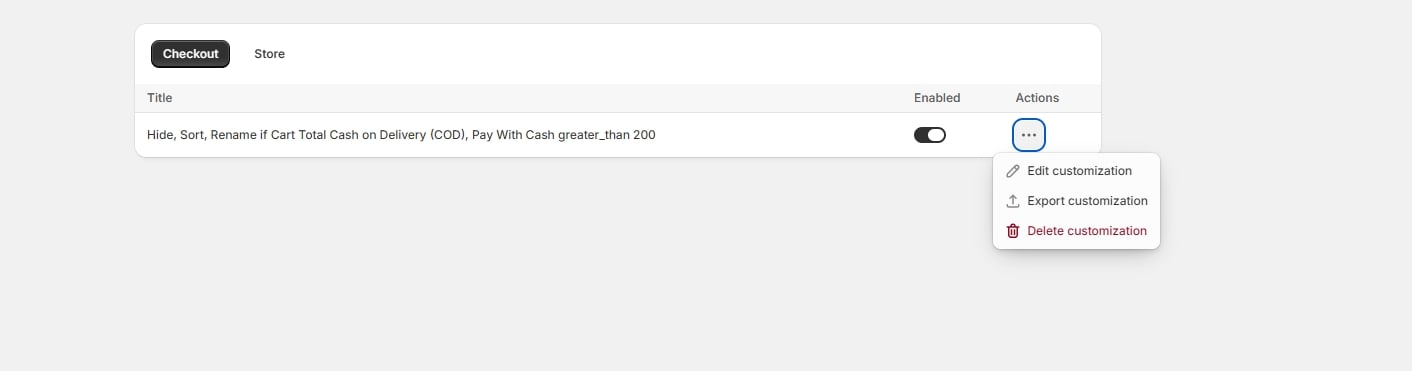
- Edit customization — opens the rule in its own editor. The app remembers which type it is, so a country mapper opens in the zone editor and an advanced rule opens in the condition builder.
- Export customization — downloads the rule as a JSON file. See Import and export.
- Delete customization — asks for confirmation first. See Deleting a rule.
Page actions
Top right of the page:- Import customization — upload a previously exported JSON file.
- Contact support
- Create customization — opens the rule-type chooser. See Choosing a rule type.
The table shows rules in creation order and does not paginate at typical volumes. If the list grows long, disable rather than delete rules you are unsure about — a disabled rule costs nothing and keeps its configuration.