
Choose function input
A section that does not exist on simple rules, and the one worth understanding first. A function input is the set of checkout data your rule is allowed to read. Requesting less data makes the rule faster; requesting the wrong set means a condition you need is unavailable.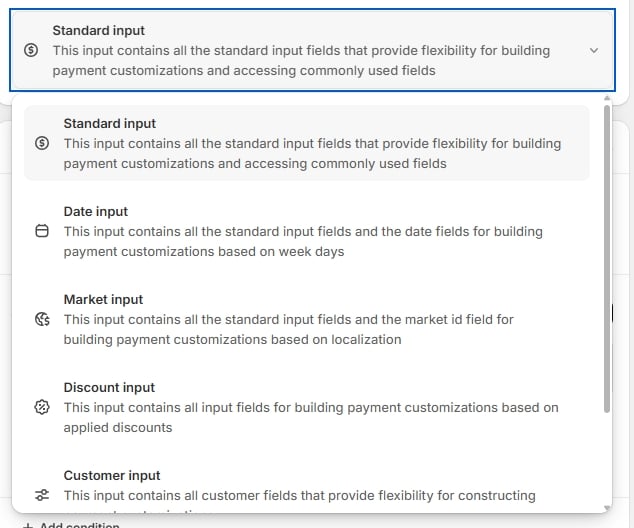
Set condition to run this customization
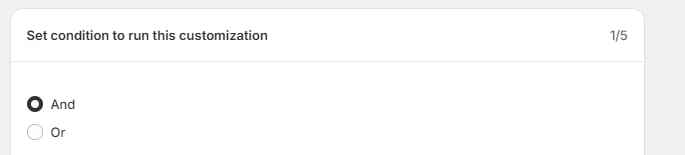
And / Or
A radio pair above the conditions, applying to the whole group:- And — every condition must be true. Narrows.
- Or — any one condition being true is enough. Widens.
Each condition
Numbered #1 condition, #2 condition, and so on, each with its own Remove button. Inside, the same picker-operator-value trio as a simple rule.Add sub condition
Beneath each condition. A sub-condition refines its parent rather than standing alongside it — Cart contains products narrowed by collections of product in cart, or tags of product in cart, or vendor of product in cart. Use sub-conditions to describe one thing precisely; use extra conditions to describe separate things.Operations and payment methods
Identical to a simple rule: tick Hide, Sort, and/or Rename, then toggle the methods in Hide, sort or rename payment methods and use Edit for per-method settings.Reading the Description panel
With five conditions the form gets long, and the right-hand Description becomes the reliable check. It renders the whole rule as one sentence with the and / or joiner shown as a badge. Read it aloud before saving. If it does not match your intent, the rule is wrong regardless of how the form looks.A worked example
Hide bank transfer for logged-out customers on small orders.- Function input → Standard input
- Joiner → And
- Condition #1 → Cart total, Less than, 2000
- Condition #2 → Customer logged in, is not logged in
- Operation → Hide, toggle Bank Deposit
- Status Active → Save