
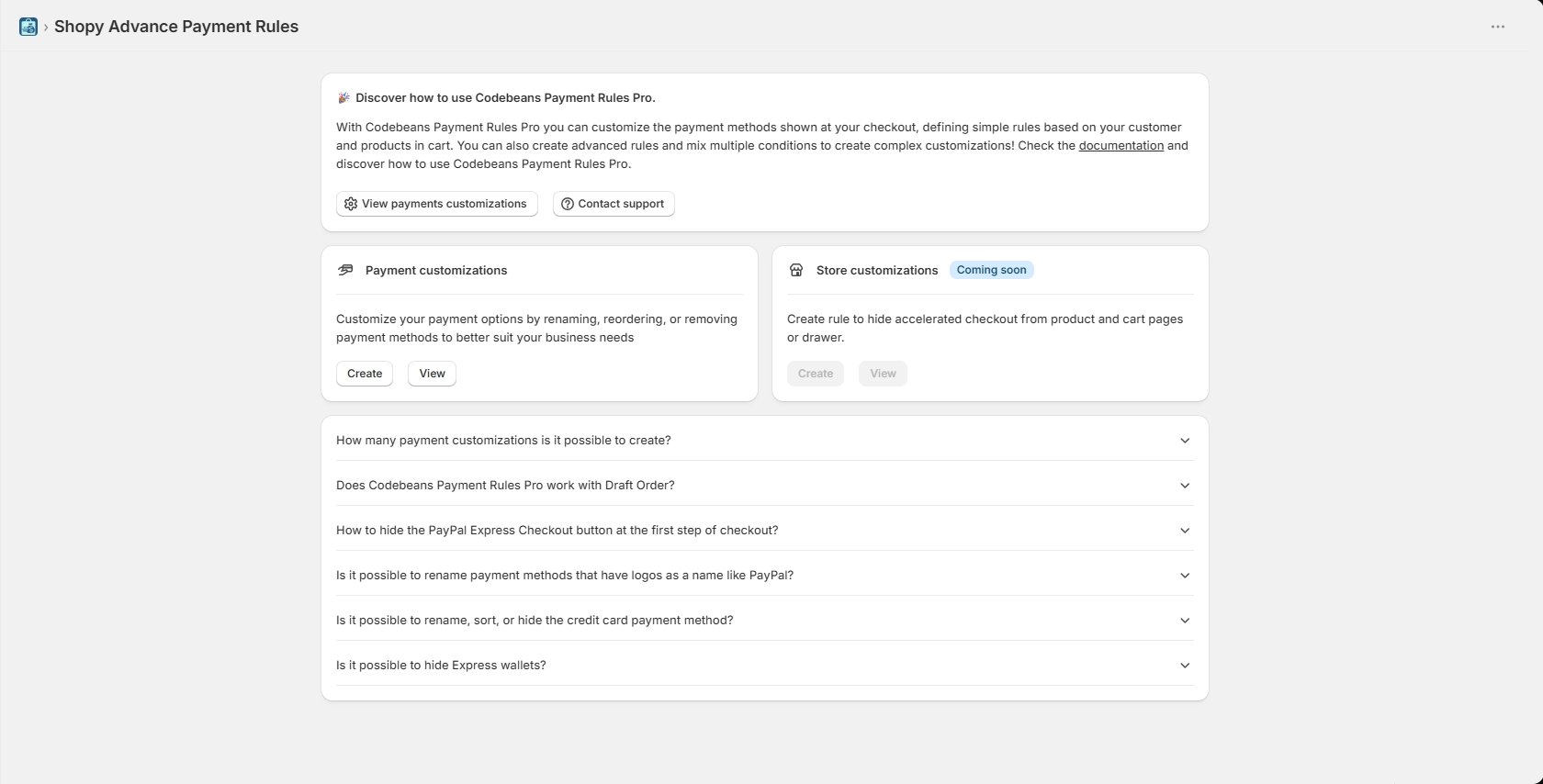
The welcome banner
Explains what the app does and gives you two shortcuts:- View payments customizations — jumps to the customizations list.
- Contact support — opens a support request.
Payment customizations
The main card. Create opens the rule-type chooser; View takes you to the list of rules you already have. This is where nearly all your time in the app will be spent.Store customizations
Marked Coming soon, with its buttons disabled. It will let you hide accelerated checkout buttons from product and cart pages — a different surface from checkout itself. Nothing to do here yet.Frequently asked questions
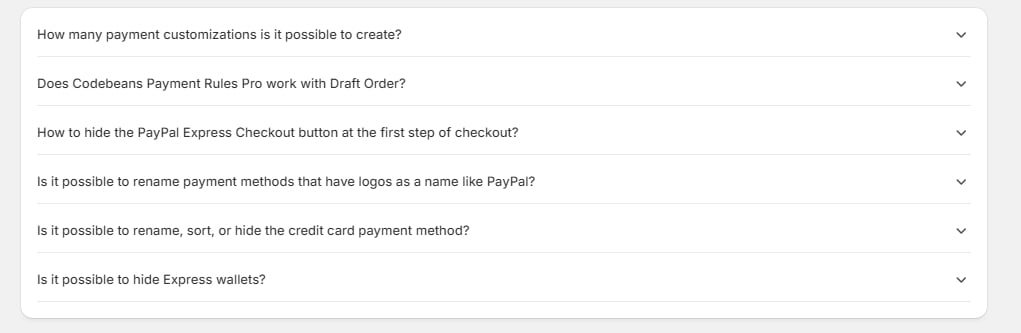
- How many payment customizations is it possible to create?
- Does Codebeans Payment Rules Pro work with Draft Orders?
- How to hide the PayPal Express Checkout button at the first step of checkout?
- Is it possible to rename payment methods that have logos as a name, like PayPal?
- Is it possible to rename, sort, or hide the credit card payment method?
- Is it possible to hide Express wallets?